
Set up two-step verification
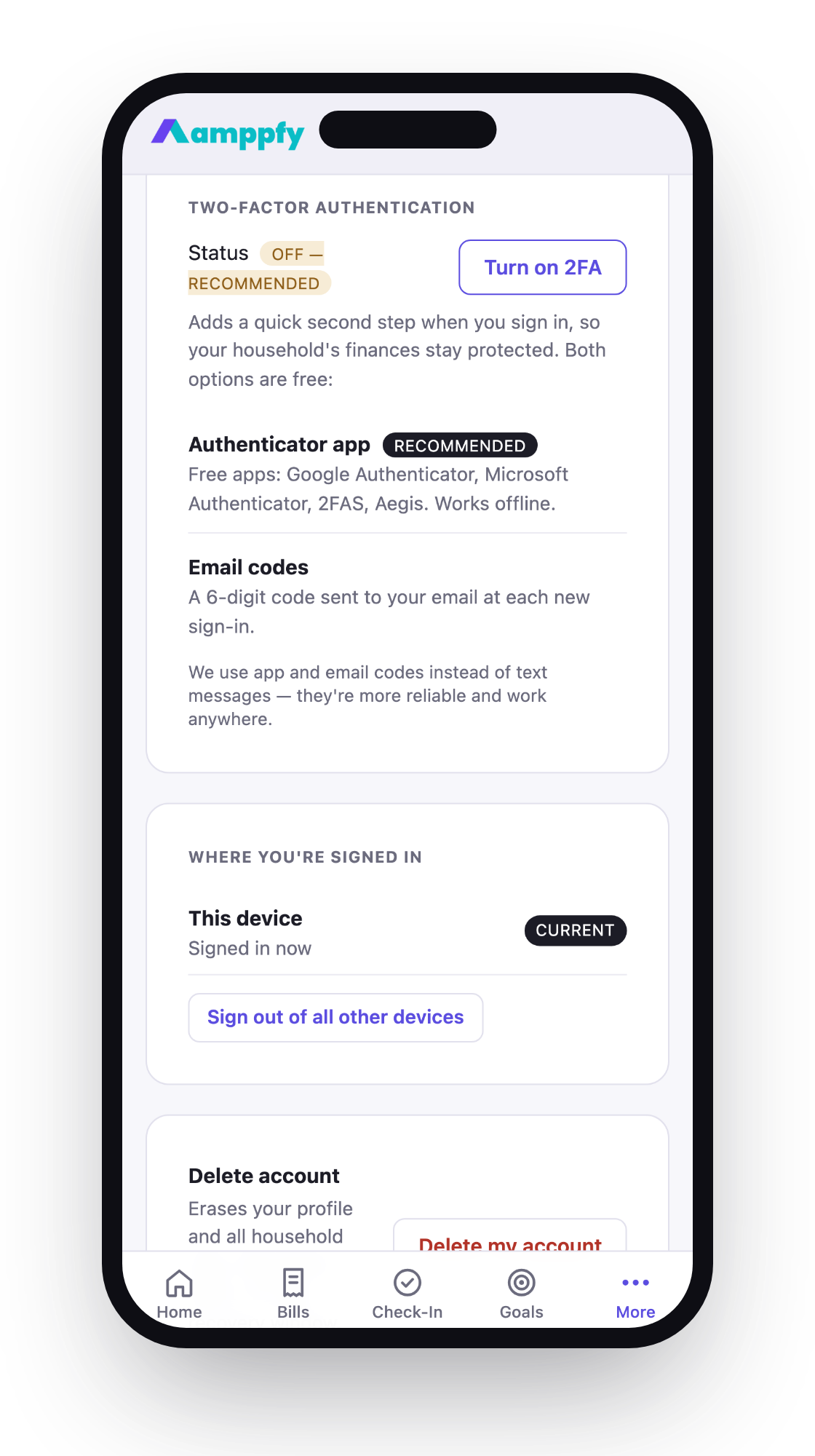
Two-step verification (2FA) adds a second step when you sign in, so your login stays yours even if someone learns your password. It’s optional and free.
Turn it on
Section titled “Turn it on”- Go to Account (on iPhone, More → Account) and open the two-step verification settings.
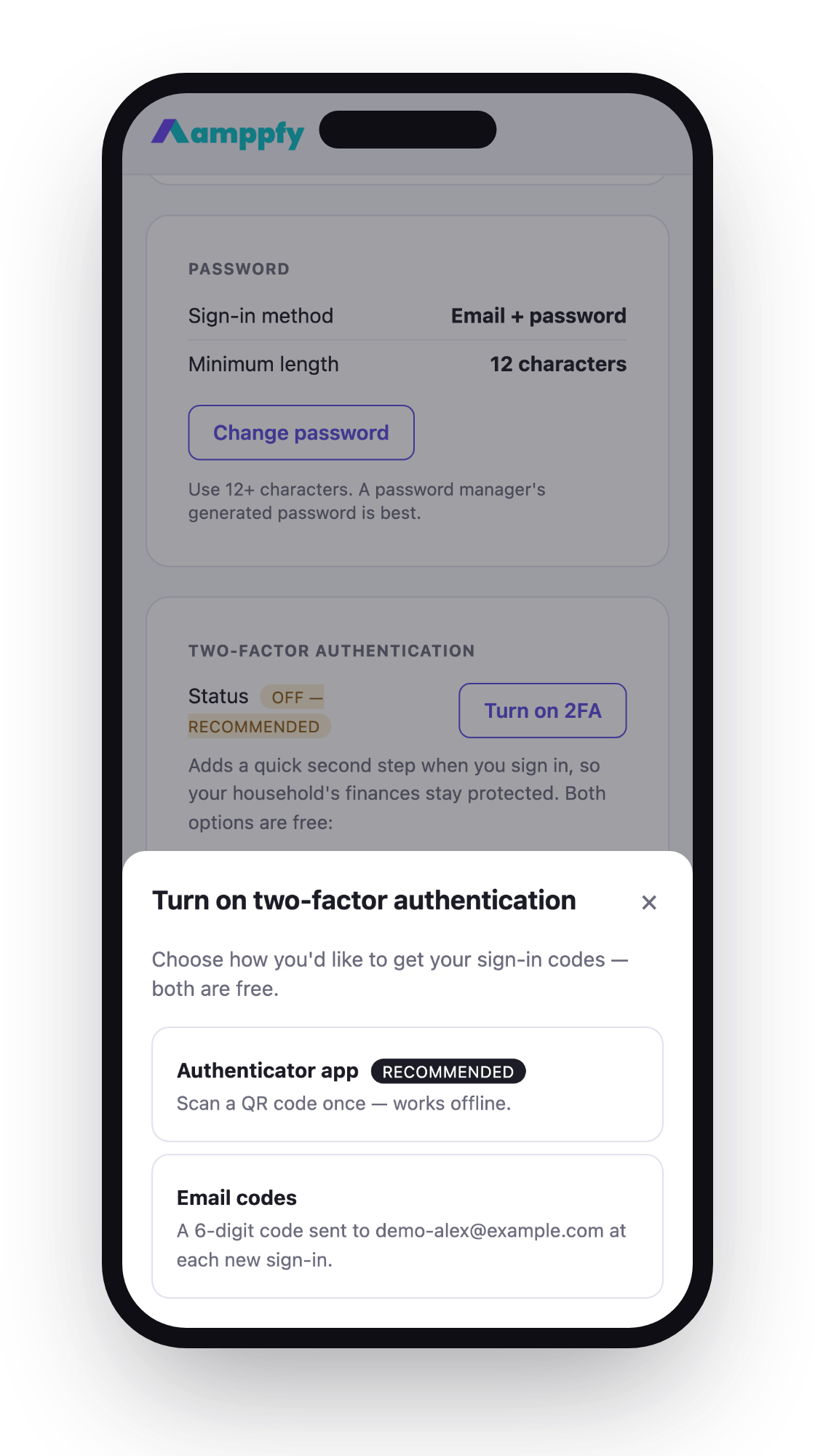
- Choose your method:
- Authenticator app — scan the QR code with any authenticator app (Google Authenticator, 1Password, Authy), then enter the six-digit code to confirm.
- Email codes — we send a code to your email each time you sign in from a new device.
- Save your backup codes somewhere safe — on iPhone they open in the share sheet so you can send them to Notes, Files, or a password manager. From now on, sign-in asks for your password plus a code.
Signing in with 2FA
Section titled “Signing in with 2FA”Enter your password as usual, then the current code from your app or inbox. Codes are short-lived — use the newest one.
On iPhone, the app also asks for a code when you reopen it after it’s been fully closed (swiped away). Switching between apps doesn’t count.
Managing sessions
Section titled “Managing sessions”From Account (on iPhone, More → Account) you can sign out of all sessions everywhere in one tap — useful if you signed in on a shared or lost device.
If you lose access to your method
Section titled “If you lose access to your method”If you chose email codes, any device with access to your inbox can receive them. If you chose an authenticator app and got a new phone, most authenticator apps can transfer their entries; setting up 2FA fresh afterward works the same as the first time.